How to Use BP Proxy Switcher
This tutorial explains how to use BP Proxy Switcher as a proxy switcher, proxy manager, proxy tester, proxy rotator, and browser privacy tool for HTTP, HTTPS, and SOCKS5 proxies.
Quick answer: Add your proxy list, choose a proxy type, optionally detect countries and test each proxy, select a proxy from the toolbar, run health checks, enable rotation when needed, configure cleanup and privacy controls, and use exclusions or user agents for site-specific workflows.

Before you start using BP Proxy Switcher
BP Proxy Switcher manages proxies you already have. The extension does not provide proxy servers by itself, so prepare your proxy list before starting. A proxy list usually contains an IP address, port, optional username, optional password, and optional label.
Use a separate browser profile if you need different proxy sessions at the same time. Browser proxy APIs usually apply the proxy at the browser profile level, not as a separate proxy per individual tab. For device-level Wi-Fi routing on iOS, follow our iPhone proxy setup guide. For phones that need a network-level route, use the Android Wi-Fi proxy setup.
ip:port:user:pass:label ip:port:user:pass ip:port:label ip:port1. Add proxies to BP Proxy Switcher
Open the extension from the browser toolbar, go to the Proxy tab, and click edit. This opens the proxy list editor where you paste one proxy per line.
- Select the proxy type: HTTP(S) or SOCKS5.
- Paste one proxy per line in the editor.
- Use labels when you want friendly names in the dropdown, such as
US DC 01orLondon residential. - Enable Detect country if you want country names and flags beside each proxy.
- Keep Test each proxy enabled when you want initial proxy health results.
- Click OK to save the proxy list.
Country detection is optional. When enabled, the proxy IP addresses you entered are sent to testmyproxies.com so the extension can retrieve country codes for flags and country names.
2. Switch proxies from the toolbar
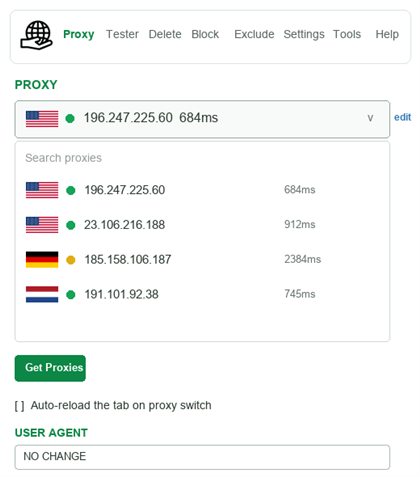
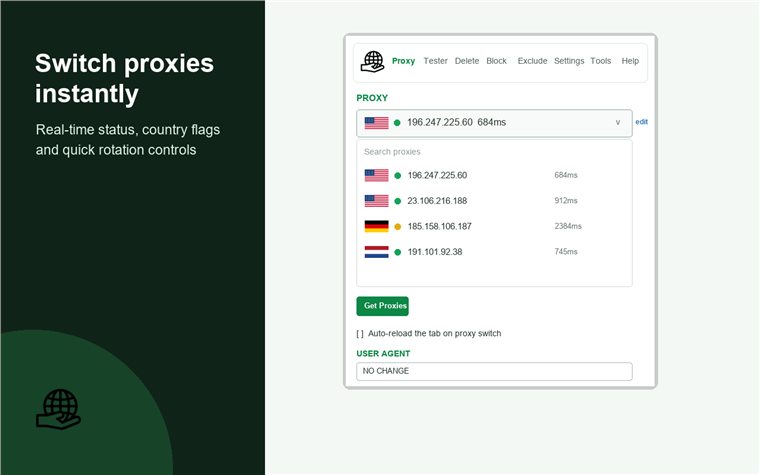
After your proxies are saved, use the proxy selector to choose the active proxy. BP Proxy Switcher updates the browser proxy settings immediately. You can search by label, IP address, port, country, or test status.
- Open the Proxy tab.
- Use the searchable dropdown to find the proxy you want.
- Select the proxy to apply it to the browser profile.
- Use the addon on/off switch if you want to temporarily disable BP Proxy Switcher.
- Enable Auto-reload the tab on proxy switch when the current website should reload after a proxy changes.
- Use the current-proxy box and notifications to confirm which proxy is active.
If a website still shows old session data after changing proxies, clear cookies/cache or reload the tab. Some websites combine IP address, cookies, local storage, browser fingerprinting, and account data.
3. Test proxy health and speed
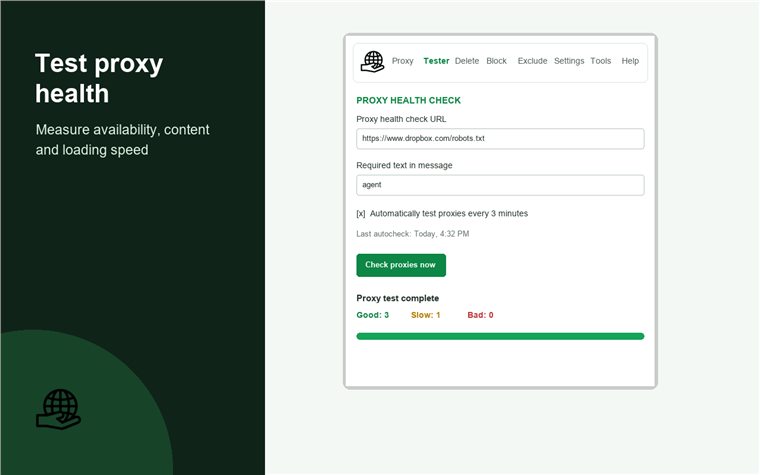
The Tester tab checks proxy availability with a test URL and optional required text. This is more useful than a basic ping because you can test the exact page or response pattern your workflow needs.
- Open the Tester tab.
- Enter a Test URL, such as a page you control or a stable page that should load through every proxy.
- Enter Required text in response when you want the proxy to be marked good only if that text appears.
- Click Check proxies now.
- Watch the progress bar and current test status.
- Review good, slow, and bad classifications when the test completes.
- Optionally enable Automatically remove bad/slower than and set the millisecond limit.
Automatic testing can run every chosen number of minutes. The tester shows Last autocheck and Next autocheck so you know when scheduled checks ran and when they will run again.
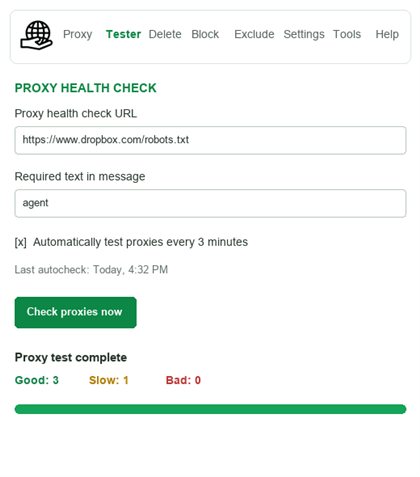
Proxy tester screenshot and result meaning
After the proxy health check runs, BP Proxy Switcher uses status indicators to make the proxy list easier to clean. Good proxies are usable, slow proxies loaded but crossed your speed threshold, and bad proxies failed the configured test.
4. Rotate proxies automatically
Proxy rotation cycles through your proxy list at a configured interval. Use it when you want the active proxy to change repeatedly without manually selecting each proxy.
Rotation can help with testing and workflows that need changing proxy endpoints. It does not make a bad proxy good and does not replace careful session, cookie, and fingerprint management.
5. Clean cookies, cache and browser data on proxy change
The Delete tab controls what browser data should be removed when a proxy changes. This is useful because websites may connect your old and new proxy sessions through cookies, cache, local storage, IndexedDB, service workers, downloads, history, or form data.
- Open the Delete tab.
- Select the browsing-data categories you want to remove on proxy change.
- Choose the time range, such as 1 hour, 24 hours, 1 week, 1 month, or a very long range.
- Use Force delete now when you want to clean immediately without waiting for the next proxy switch.
- Click OK to save cleanup settings.
For strict workflows, combine cleanup with privacy protection and a separate browser profile.
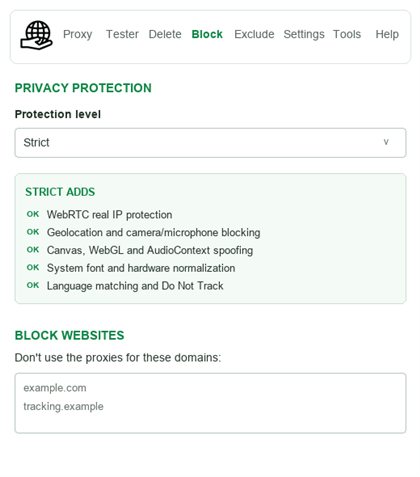
6. Use privacy protection levels
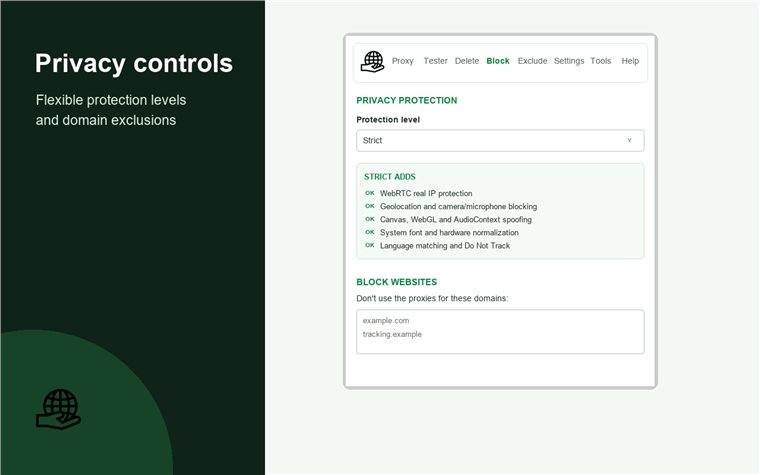
The Block tab includes URL blocking and privacy protection levels. These settings help reduce non-proxied browser signals such as WebRTC leaks, geolocation access, device enumeration, and fingerprinting surfaces. Stricter levels may affect website compatibility.
7. Exclude domains and manage user agents
A proxy changes the network route. A user agent changes a browser request header. Cookies, storage, account login state, timezone, language, and fingerprinting behavior can still affect how websites identify a session.
8. Configure notifications, current proxy box and sync
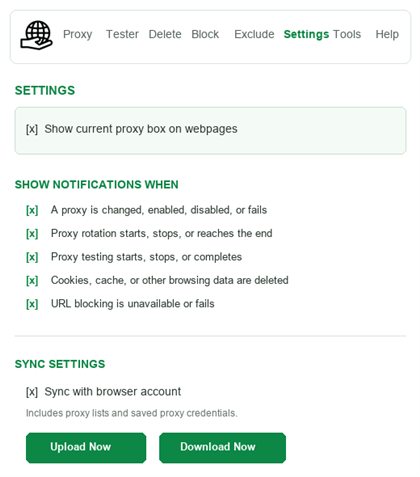
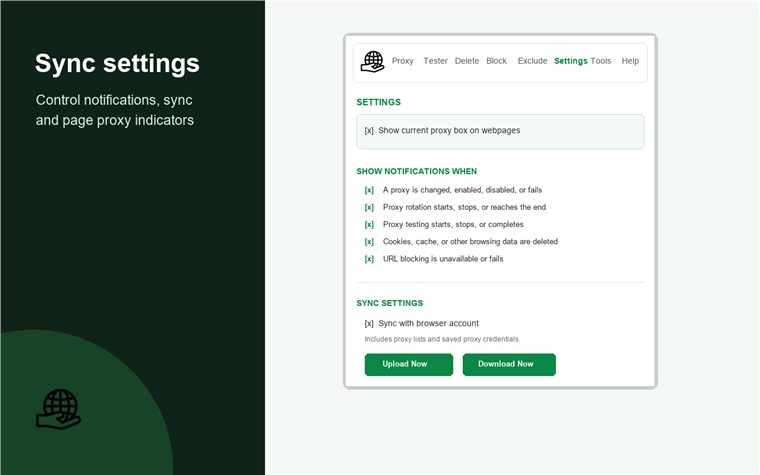
The Settings tab lets you decide which helper messages should appear while you work. You can show the current proxy box on webpages and choose notification categories for proxy changes, rotation, testing, cleanup, and blocking status.
- Enable Show current proxy box on webpages if you want visible confirmation of the active proxy.
- Choose which notification categories should appear on pages.
- Enable Sync with browser account only if you want browser-account sync.
- Use Upload Now to push current settings to sync storage.
- Use Download Now to restore synced settings on another signed-in browser profile.
Sync can include proxy lists and saved proxy credentials. Keep sync disabled if you do not want proxy credentials stored through the browser account sync system.
Settings screenshot: sync, bypass, cleanup and notifications
The settings screen brings together the workflow controls that make BP Proxy Switcher useful for repeated work: page notifications, proxy box visibility, browser-account sync, cleanup behavior, and bypass rules.
All BP Proxy Switcher features explained
Use the reference below to find the controls for proxy setup, testing, rotation and browser cleanup.
Next steps
Continue with proxy tools
Verify the proxy list and fix common setup problems before using it in a browser profile.
Start with a clean proxy workflow
For the best results, add labeled proxies, test the list, remove bad or slow proxies, enable cleanup rules, set a privacy level that still works with your target sites, and only enable sync when you are comfortable syncing proxy credentials through your browser account.


BP Proxy Switcher FAQ
What is BP Proxy Switcher used for?
BP Proxy Switcher is used to manage, switch, test, and rotate HTTP, HTTPS, and SOCKS5 proxies from the browser toolbar. It also includes privacy controls, cleanup options, user agents, proxy bypass rules, and optional settings sync.
How do I add proxies to BP Proxy Switcher?
Open the Proxy tab, click edit, choose HTTP(S) or SOCKS5, paste one proxy per line, optionally enable country detection and testing, then click OK.
What proxy formats does BP Proxy Switcher support?
Common formats include ip:port, ip:port:label, ip:port:user:pass, and ip:port:user:pass:label. Labels are optional and help organize the proxy dropdown.
Can BP Proxy Switcher test whether proxies work?
Yes. The Tester tab can test each proxy against a URL and required response text, measure response time, and classify proxies as good, slow, or bad.
Can BP Proxy Switcher rotate proxies?
Yes. Proxy rotation can change proxies at a configurable interval, restart from the top of the list, or shuffle the proxy list when the end is reached.
Does BP Proxy Switcher clean cookies and cache?
Yes. The Delete tab can remove selected browsing data on proxy change, including cookies, cache, history, downloads, local storage, session storage, IndexedDB, service workers, and other supported data types.
Does BP Proxy Switcher block WebRTC leaks?
BP Proxy Switcher includes privacy levels that help reduce WebRTC real IP leaks and other browser signals where the browser extension APIs allow it. Strict levels may affect website compatibility.
Does BP Proxy Switcher provide proxies?
No. BP Proxy Switcher manages proxy servers you already have. It does not provide proxies and does not guarantee anonymity, availability, speed, or compatibility.
Should I enable settings sync?
Enable browser-account settings sync only if you want proxy lists and saved proxy credentials synced through the browser account. Keep it disabled if you prefer all proxy settings to stay local.
Which browsers does BP Proxy Switcher support?
BP Proxy Switcher is built for Chrome, Microsoft Edge, and Firefox, with browser links shown on this page.
Order clarity
What you receive
- What you receive
Proxy connection details for the package processed through the live order form.
- Protocols
HTTP or SOCKS5 options are shown during configuration for supported packages.
- Authentication
Set the requested proxy credentials during configuration before checkout.
- Locations
Current location availability is shown in the selector and can change with inventory.
- Support and checking
Support can help verify connection details and review replacement requests under the service policy.