
Android Wi-Fi proxy setup
Android Wi-Fi Proxy Settings: Manual Setup and PAC URL
Quick answer
- Open the settings for the Wi-Fi network currently connected to your Android device, then choose Edit or Advanced options.
- Open Proxy and select Manual.
- Enter the proxy hostname and port supplied with your proxy, then add authentication when the browser or app requests it.
- Save the network settings and verify the public exit IP before using the connection.
Important: Android’s system Wi-Fi proxy is saved per network and primarily affects apps that respect the HTTP proxy setting; it does not guarantee coverage for every app, SOCKS5 or UDP traffic, or mobile-data connections.
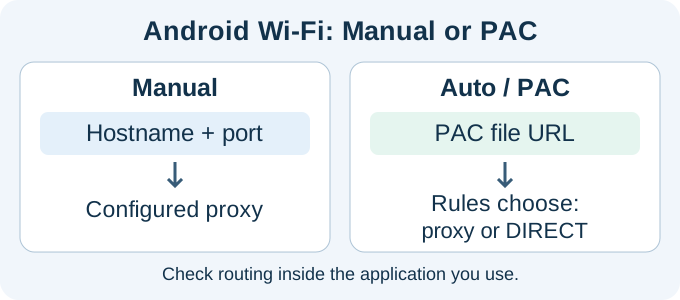
To set up a proxy on Android Wi-Fi, enter the hostname and port in Manual settings, or supply a trusted PAC URL where automatic configuration is supported. A PAC URL points to a configuration script; it is not the proxy IP address itself. The setting belongs to the selected Wi-Fi network, so check authentication and the exit IP in the browser or application you actually use.
Get proxies for your Android setup
Choose HTTP proxy plans, then check how your Android device or app handles proxy authentication.
Dedicated: IPs assigned only to you, for exclusive use.
Semi-Dedicated: IPs shared with a limited number of customers, at a lower cost per proxy.
What you need before changing Android proxy settings
- Proxy host: an IP address or hostname, entered without extra spaces.
- Proxy port: the numeric port provided with the service.
- Authentication details: username and password, or confirmation that your current public IP is authorized.
- Protocol: Android’s built-in Wi-Fi screen is intended for an HTTP proxy or PAC URL. A SOCKS endpoint normally needs application-level support or another approved client.
- Bypass hosts: optional domains that should connect directly, when the device interface provides that field.
If your proxy arrives as one combined line, use the Proxy Formatter to identify its host, port, username and password. Do not paste username:password@host:port into the hostname field unless the application explicitly asks for a full proxy URL.
How to set a proxy on Android Wi-Fi
- Connect to the Wi-Fi network. Android saves proxy settings against that network, so start with the network you actually want to modify.
- Open its details. Go to Settings, open Wi-Fi, and tap the connected network or its gear/info icon.
- Choose Edit. Depending on the device, tap a pencil, Modify network, Manage network settings or Advanced.
- Open Proxy. Change the value from None to Manual. For a managed environment with a PAC file, choose Auto-configuration when available.
- Enter hostname and port. Use the exact endpoint supplied by the proxy provider. Do not add
http://unless the field specifically requests a URL. - Add bypass rules only when needed. Keep the list small and use the syntax shown by the device.
- Save. Some devices require the Wi-Fi password again before saving network changes.
- Test in a browser. Open the IP location checker and verify that the displayed address is the proxy exit IP.
Google’s Android Emulator documentation confirms that the Android system proxy can be configured from the Wi-Fi settings UI and notes an important limitation: it is used by browsers and most applications, but some apps may ignore it. The same documentation distinguishes the Android system proxy from the separate Android Emulator proxy used by development tools.
Official settings screenshots: The BenQ RM04 user manual, version 1.1.2, pages 22–23 shows the Android board’s Wi-Fi edit dialog, Manual proxy choice, hostname, port and bypass fields. These manufacturer screenshots illustrate the fields on that model; they are not a test on an Android phone. Use Google’s current Pixel proxy-settings instructions for its menu path, and record your own phone model, Android version and browser result before applying the steps to other devices.
Why Android menus and behavior vary
Android provides the underlying network model, but manufacturers can rename, move or visually redesign the Wi-Fi controls. On one device the edit action is a pencil; on another it appears under Manage network settings. Work profiles and organization-owned devices can also restrict changes. Use the connected network’s advanced details and look for Proxy rather than relying on one screenshot from another phone.
The operating-system version is only part of the variation. An application may use Android’s normal HTTP stack, an embedded WebView, a custom networking library or a direct socket connection. Android’s WebView APIs even support their own proxy override and bypass rules for applications that implement them. This explains why a browser test can succeed while a game, streaming app or custom corporate client remains direct. Treat the application path as a separate verification step.
Manual proxy versus PAC URL
Where do I get a PAC URL for Android Wi-Fi?
A PAC URL is the address of a proxy auto-configuration file supplied by your network administrator or proxy service. It is not the proxy hostname and port, and there is no universal PAC URL that works for every Wi-Fi network. If your provider supplied only a hostname and port, choose Manual instead of inventing a PAC address.
For the Auto / PAC option, copy the complete file URL from its trusted source, save the Wi-Fi settings, and verify the resulting exit IP in the client you intend to use. PAC rules can choose a proxy for one destination and a direct connection for another, so check the actual destination as well as the Wi-Fi setting. Android’s ProxyInfo reference distinguishes direct hostname/port configuration from PAC configuration.
| Android option | What you enter | Best fit | Key limitation |
|---|---|---|---|
| Manual | Proxy hostname, port and optional bypass list | One fixed HTTP proxy | Native screen may not provide a persistent username/password field |
| Auto / PAC | URL of a proxy auto-configuration file | Managed rules that choose proxy or direct routes | The PAC file must be reachable and valid |
| None | No proxy | Normal direct Wi-Fi connection | Traffic uses the network’s usual public route |
How proxy authentication works on Android
Many Android versions do not expose username and password fields in the standard Wi-Fi proxy screen. A browser may request credentials when it first connects, but another app may fail without prompting. IP-authorized proxies avoid the prompt by allowing traffic from a registered public source IP, though that authorization must be updated when the source address changes.
For repeatable testing, first confirm the proxy with the Proxy Tester. Then test it inside the exact Android application. A successful browser check does not prove that every app supports the same authentication method.
PAC files, bypass rules and managed devices
A proxy auto-configuration file is a small JavaScript rule set that returns a proxy route or a direct connection for a requested URL. Use Automatic only when a trusted administrator supplies the PAC URL. Confirm that the device can reach the file before the proxy is required; a broken or inaccessible PAC file can make behavior appear random. Review bypass rules carefully because a matching host deliberately connects without the proxy.
For a company-managed phone, device-owner or profile-owner policy may control proxy settings centrally. Do not fight that policy by repeatedly editing the Wi-Fi network. Ask the administrator whether the intended route belongs at Wi-Fi level, inside the application or in a managed network configuration. The Android WifiConfiguration reference documents that programmatic proxy changes are privileged for device or profile owners.
Best Android proxy settings by use case
Website QA
Use a stable dedicated HTTP proxy on the test Wi-Fi network. Keep browser language, cookies and account state documented so location tests can be repeated.
Development debugging
Use a controlled debugging proxy and install certificates only when your organization owns the test environment and understands HTTPS inspection.
Regional checks
Select the required country, verify the exit address, and remember that IP location does not replace device GPS or app-level location permissions.
Long sessions
Prefer a fixed, dedicated endpoint. Changing IPs inside a stateful session can make test results inconsistent.
Android proxy troubleshooting matrix
| Observation | What it suggests | Next test |
|---|---|---|
| Direct Wi-Fi works, proxy mode does not | Endpoint, port, authentication or proxy reachability | Return to one verified host and port, then test a simple HTTPS page with a short timeout. |
| Browser changes IP but one app does not | The app bypasses the system HTTP proxy or uses unsupported traffic | Look for an in-app proxy option and verify the app’s documentation before installing another client. |
| Credential prompt repeats | The app cannot store or reuse proxy authentication | Retest credentials, then ask whether source-IP authorization is appropriate for the controlled network. |
| Only HTTPS pages fail | CONNECT, certificate trust or inspection issue | Keep certificate verification enabled and test without any interception certificate before changing security settings. |
| Cellular traffic shows the original IP | Expected per-Wi-Fi scope | Reconnect to the configured Wi-Fi network; use a separately approved mobile routing design if cellular coverage is required. |
| Settings disappear or cannot be saved | Manufacturer UI, work profile or management policy | Check device-owner restrictions and confirm that the current user is allowed to edit the saved network. |
Android verification record
For QA work, record the device model, Android version, Wi-Fi network name, proxy label, authentication method, test URL, visible IP, timestamp and application version. Do not place the password in the record. Repeat the same small test after a device update because manufacturer network components and application libraries can change. A short verification record makes it possible to distinguish a proxy replacement from an operating-system or app update.
Android proxy troubleshooting
Connected to Wi-Fi but no internet
Temporarily set Proxy back to None. If direct access returns, recheck the proxy hostname, port and authorization. Confirm that the endpoint is active and that the proxy protocol matches the Android setting.
The public IP did not change
Make sure you edited the connected Wi-Fi network and saved it. Close and reopen the browser or use a private tab. If only one app ignores the proxy, that app may use its own networking configuration.
Authentication keeps appearing
Verify credentials and check whether the application can retain proxy authentication. If your provider supports source-IP authorization, it may be more compatible for a controlled fixed network.
Some apps work and others fail
This is a known limitation of system proxy settings. Some apps ignore the system HTTP proxy, use certificate pinning, use non-HTTP traffic or implement their own DNS and transport behavior. Configure the proxy inside the application when it offers a supported option.
Mobile data is not proxied
The normal Android setting belongs to a Wi-Fi network. Routing cellular traffic requires a different, explicitly supported application, managed-device policy or network design. Do not install unknown proxy applications that request broad device permissions.
How to remove the Android proxy
Open the same Wi-Fi network details, choose Edit or Advanced, change Proxy to None, and save. Reconnect to the network and verify that the direct public IP has returned. Removing the app or browser cache alone does not clear a proxy stored in the Wi-Fi configuration.
Android proxy FAQ
Does Android support SOCKS5 in Wi-Fi settings?
The standard Wi-Fi proxy interface is built around HTTP proxy or PAC configuration. SOCKS5 generally requires support inside the application or another trusted client.
Does the proxy apply to every Wi-Fi network?
No. Manual settings are stored per network. Configure each saved network separately and avoid leaving old proxy settings on networks that should use direct access.
Can an Android proxy change GPS location?
No. It changes the public network route for compatible traffic. GPS, Wi-Fi positioning and app location permissions remain separate.
Why does Chrome work but another app does not?
The other app may ignore Android’s system proxy, use an unsupported protocol, or reject the authentication or certificate flow. Test at the application level.
Can I configure one Android proxy for both Wi-Fi and mobile data?
Not with the normal Wi-Fi proxy screen. It is stored per Wi-Fi network. Cellular routing requires a different, explicitly supported application, managed-device policy or network architecture.
Configure Android with a tested endpoint
Use a proxy whose location, protocol and authentication method match the device workflow. Test the browser first, then verify the exact application. Google’s Android advanced network settings notes that menus and availability can depend on the Android version and manufacturer; the separate Android Emulator proxy guide applies to emulator workflows. For a protocol comparison, read HTTP vs SOCKS proxies.
Updated practical checklist
Keep mobile data off during the initial Wi-Fi test so a fallback connection does not confuse the result. Save the manual hostname and port, or the PAC URL, for the selected network; inspect bypass entries before comparing the browser’s public IP. Then test each required app separately and restore Proxy to None after the test. Google’s Pixel network-settings guide documents the menu path; other Android builds can differ.
| Before you start | What to confirm |
|---|---|
| Proxy type | Dedicated for important workflows; semi-dedicated for lower-risk testing. |
| Protocol | Use HTTP/HTTPS unless the tool clearly supports SOCKS5. |
| Authentication | Check username/password format or IP whitelist before blaming the proxy. |
| Quality control | Run a tester check, then verify location and speed. |
Should I use dedicated proxies for this?
Use dedicated proxies when the task depends on clean reputation, stable sessions or easy troubleshooting.
What should I check first if the proxy fails?
Check format, protocol and authentication first. Then test speed, location and target-specific blocking.
Useful next steps: proxy setup guides, proxy tools, and dedicated proxy plans.
Order clarity
What you receive
- What you receive
Proxy connection details for the package processed through the live order form.
- Protocols
HTTP or SOCKS5 options are shown during configuration for supported packages.
- Authentication
Set the requested proxy credentials during configuration before checkout.
- Locations
Current location availability is shown in the selector and can change with inventory.
- Support and checking
Support can help verify connection details and review replacement requests under the service policy.