
BP Geolocation Spoofer Tutorial: Coordinates and Exceptions
This tutorial explains how to use BP Geolocation Spoofer as a browser location spoofer, mock location extension, location testing extension, and geolocation testing tool for Chrome, Firefox, and Microsoft Edge.
Quick answer: Turn spoofing on, choose a preset or saved location profile, refresh the test website, add custom coordinates when needed, exclude trusted sites that should use real browser location, and use the page location badge to confirm what location websites receive.
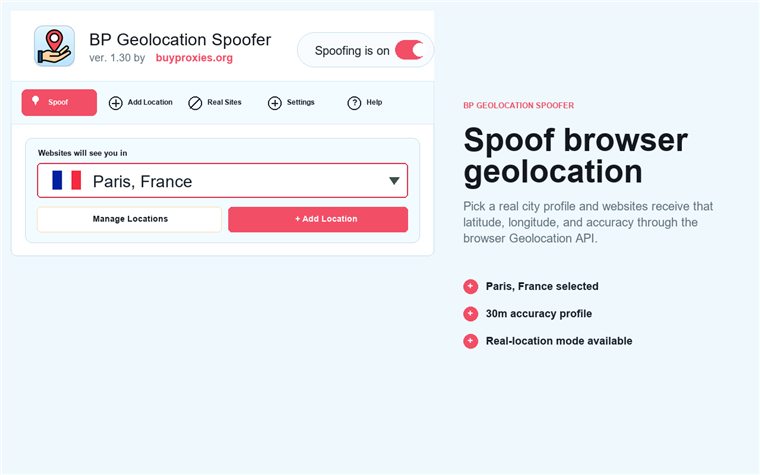
Before you start using BP Geolocation Spoofer
BP Geolocation Spoofer changes the browser JavaScript Geolocation API response visible to websites. When a page asks for navigator.geolocation, the page can receive your selected latitude, longitude, accuracy, and optional altitude.
This is not a VPN and not a proxy. It does not change your IP address, timezone, operating-system GPS, browser language, browser locale, or signed-in account location.
Maps testingLocal search testingDelivery and booking flowsWeather and retail localizationQA with saved city profilesMatching browser geolocation with a proxy location
1. Spoof browser geolocation
The Spoof Location tab controls the active location. Use the global toggle at the top to turn spoofing on or off, then choose the location profile websites should receive.
- Open BP Geolocation Spoofer from the browser toolbar.
- Make sure Spoofing is on.
- Open Spoof Location.
- Choose a preset city, saved custom location, or Use my real location.
- Refresh the website you are testing so it requests geolocation again.
- Confirm the selected profile with the page location badge if it is enabled.
2. Choose preset or saved location profiles
BP Geolocation Spoofer includes preset city profiles such as Bucharest, New York, London, Berlin, Paris, Tokyo, Sydney, and San Francisco. Saved custom profiles appear in the same selector.
Use profiles for repeatable QA. For example, test the same booking, retail, delivery, weather, or local search flow from several cities without manually entering coordinates every time.


3. Add custom coordinates
Use Add Location when the preset cities are not enough. You can search with OpenStreetMap lookup or enter latitude and longitude manually.
- Open Add Location.
- Search for a place with OpenStreetMap lookup or type a name manually.
- Enter latitude between -90 and 90.
- Enter longitude between -180 and 180.
- Set accuracy in meters.
- Optionally set altitude in meters.
- Save the location and select it from Spoof Location.
OpenStreetMap lookup sends only the typed location query to the lookup provider when you use autocomplete.
4. Let selected sites use real browser location
Some trusted sites should bypass spoofing. Use Real Location Sites to add domains that should receive real browser geolocation while spoofing remains active elsewhere.
- Open Real Location Sites.
- Enter a trusted domain such as
maps.example.com. - Click Use real location here.
- Refresh that website.
- Remove the domain later when it should receive spoofed location again.


5. Use the page location badge
The Settings tab includes Show page location badge. When enabled, a small movable badge appears on pages while spoofing is active so you can confirm the active location without reopening the popup.
You can show, move, hide, or disable the badge depending on the workflow. It is especially useful during QA sessions where you switch locations often.
All BP Geolocation Spoofer features explained
Use the reference below to find the controls for setting coordinates, saving location profiles and excluding websites from spoofing.
Match geolocation with the rest of your test setup
BP Geolocation Spoofer changes browser geolocation only. If a website also checks IP location, use a proxy or VPN that matches the spoofed city, then refresh the page and test again.
BP Geolocation Spoofer FAQ
What is BP Geolocation Spoofer?
BP Geolocation Spoofer is a browser location spoofer that changes the Geolocation API response websites receive from the browser.
Does it change my IP address?
No. It changes browser geolocation only. It does not change IP address, VPN, proxy, timezone, system GPS, browser locale, or account location.
How do I add a custom location?
Open Add Location, search with OpenStreetMap lookup or enter coordinates manually, set accuracy, optionally set altitude, and save the profile.
What are Real Location Sites?
They are trusted domains that bypass spoofing and receive real browser geolocation.
Why does a website still show another location?
The site may use IP location, account settings, cached location data, or a previous geolocation result. Refresh the page and check whether the site uses browser geolocation or IP geolocation.
Is OpenStreetMap lookup required?
No. You can enter latitude, longitude, accuracy, and altitude manually. Lookup is only a shortcut for finding coordinates.