iPhone Wi-Fi proxy setup
iPhone Proxy Setup: Manual and Automatic Wi-Fi Guide
An iPhone can use a manual HTTP proxy or a proxy auto-configuration URL for a specific Wi-Fi network. This is useful for controlled web testing, development and regional checks, but it does not automatically apply to cellular data or guarantee that every application follows the same proxy settings.
Quick answer: Open Settings → Wi-Fi, tap the information button beside the connected network, scroll to Configure Proxy, choose Manual, and enter the server and port. Turn on Authentication when the proxy requires a username and password. For a PAC file, choose Automatic and enter its URL. Save the change, then verify the public IP in Safari.
Information required for an iPhone proxy
- Server: the proxy hostname or IP address.
- Port: the numeric proxy port.
- Authentication: username and password when required.
- Configuration method: Manual for a fixed endpoint or Automatic for a PAC URL.
- Expected location: the country or region you need to verify after setup.
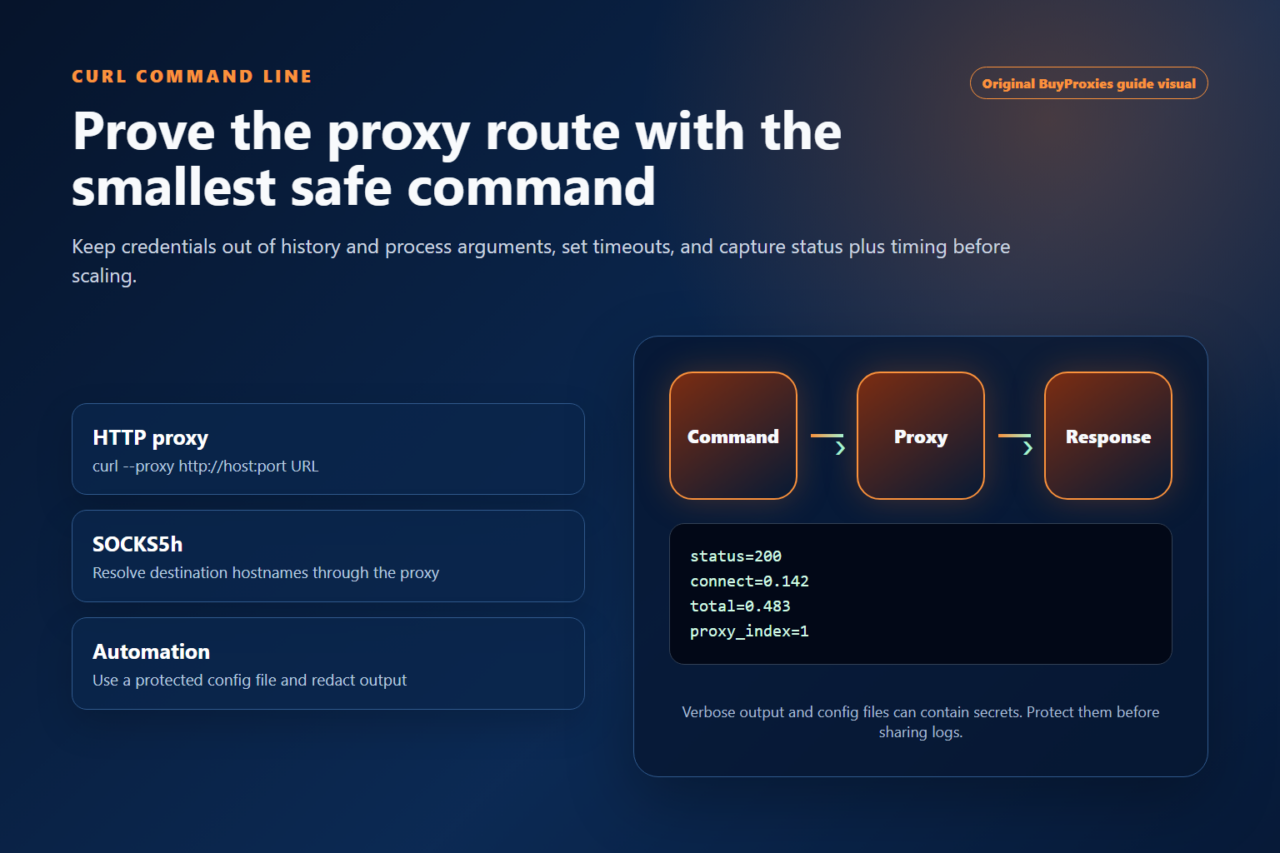
iPhone’s built-in screen is designed for HTTP proxy configuration. If you purchased a SOCKS endpoint, use an application that explicitly supports SOCKS or choose an HTTP-compatible endpoint. Our HTTP vs SOCKS guide explains why the labels are not interchangeable.
How to set a manual proxy on iPhone
- Connect to Wi-Fi. Join the network whose traffic you want to configure.
- Open Settings. Tap Wi-Fi, then tap the information icon beside the connected network.
- Open Configure Proxy. Scroll down and select the proxy setting.
- Choose Manual. Enter the proxy server and port exactly as supplied.
- Configure authentication. If required, enable Authentication and enter the username and password in their separate fields.
- Save the change. Return to the network details screen.
- Verify in Safari. Open the IP location checker and compare the displayed address and location with the expected endpoint.
If your provider sends one combined proxy string, separate it into fields with the Proxy Formatter. Enter the host without a path, and do not include the username in the server field.
Understand per-network scope and app support
iOS stores the normal proxy choice with the Wi-Fi network, not as one global personal setting. If the phone joins a different access point, the previous server and port do not follow it. Captive portals can also require a direct sign-in before the configured proxy becomes usable. Complete the network’s legitimate sign-in first, then verify the route again.
Safari and many applications use the system HTTP proxy, but an app can implement its own transport, ignore the setting, use non-HTTP traffic or require certificate pinning. A successful Safari IP check therefore proves only the browser path. For an application QA project, test the application separately and document whether it supports the managed or Wi-Fi proxy model. Do not install an unknown routing app merely because one application remains direct.
How to use an automatic PAC proxy
A proxy auto-configuration file contains rules that decide whether a URL should use a proxy or connect directly. In Configure Proxy, choose Automatic, enter the complete PAC URL and save. The URL must remain reachable for the rules to load. PAC configuration is most useful in a managed business or testing environment where the file is controlled and reviewed.
Apple’s device-management documentation uses the same distinction: a manual proxy requires a server address and port, with optional credentials, while an automatic proxy uses a PAC URL. Managed Global HTTP Proxy can cover supervised devices more broadly, including networks beyond one Wi-Fi connection, but it requires organizational device management.
| Method | Required values | Coverage | Best use |
|---|---|---|---|
| Manual Wi-Fi proxy | Server, port, optional username/password | One saved Wi-Fi network | One fixed HTTP proxy |
| Automatic Wi-Fi proxy | PAC URL | One saved Wi-Fi network | Rule-based routing |
| Managed Global HTTP Proxy | Device-management payload | Managed supervised device | Organization-wide policy |
| Off | None | Direct connection | Normal network route |
Manual, PAC and Global HTTP Proxy decisions
Choose Manual when one tested server and port should handle compatible traffic on a single Wi-Fi network. This is easy to inspect and roll back. Choose Automatic only when an administrator controls the PAC file, can explain its bypass behavior and monitors the URL. A PAC rule can intentionally send some destinations direct, so a direct result is not always a failure; compare it with the file’s intended routing.
Global HTTP Proxy is for supervised organization-owned devices enrolled in device management. It can apply a broader policy than one user’s Wi-Fi edit and is appropriate when an organization needs consistent routing and support. It is not a shortcut for a personal phone. Administrators should test the payload on a small device group, document recovery when the proxy is unavailable and provide a support route before wider deployment.
Authentication and credential handling
When Manual mode enables Authentication, enter the provider username and password in their separate fields. Do not place secrets in the server name, screenshots or support tickets. A repeated prompt can mean incorrect credentials, an endpoint that does not accept the chosen method, or an application that cannot reuse proxy authentication. Source-IP authorization avoids a stored username on the phone but fails when the Wi-Fi network’s public IP changes unless the provider record is updated.
For a shared test device, remove the proxy configuration and any saved credentials after the project. If a password was exposed in a screenshot or copied into an unsecured note, rotate it with the provider rather than only deleting the image. Keep the neutral endpoint label and test result separate from the secret so reports remain useful.
Best iPhone proxy settings by use case
Regional website QA
Use a fixed endpoint in the required country. Test in a private Safari tab and document language, cookies and account state.
Development testing
Use a proxy you control, change only the test Wi-Fi network, and install inspection certificates only in an authorized environment.
Persistent session
Prefer a dedicated static IP and avoid switching endpoints mid-session unless the test explicitly requires it.
Managed devices
Use Apple’s supported device-management payloads instead of asking users to maintain settings manually across many networks.
Test the iPhone proxy correctly
- Check the proxy independently with the Proxy Tester.
- Verify that the iPhone remains connected to the configured Wi-Fi network.
- Open Safari and check the public IP and country.
- Load the actual website or application used by the project.
- Repeat the request and record connection errors or credential prompts.
- Turn the proxy off and compare the direct route to isolate whether the issue belongs to the proxy or the destination.
iPhone proxy troubleshooting
Safari says it cannot connect
Set Configure Proxy to Off temporarily. If direct browsing works, recheck the server, port and account status. Confirm that the endpoint accepts HTTP proxy connections and is reachable from the current network.
The username or password is rejected
Re-enter the values manually, check letter case and remove copied spaces. If the service uses source-IP authorization, make sure the Wi-Fi network’s current public IP is approved.
The public IP did not change
Confirm that the iPhone has not switched to cellular data or another Wi-Fi network. Reopen Safari, try a private tab and make sure Configure Proxy was saved for the connected network.
Safari works but another app does not
The application may ignore the Wi-Fi HTTP proxy, use an unsupported protocol, enforce certificate pinning or connect through its own transport. Test support inside that exact app.
The proxy disappears on another network
This is expected. Standard iPhone proxy settings are saved per Wi-Fi network. Configure the second network separately or use a legitimate managed-device solution when broader organizational coverage is required.
iPhone proxy troubleshooting matrix
| Symptom | Likely cause | Controlled next step |
|---|---|---|
| No websites load after saving | Wrong server or port, unreachable endpoint, or authorization failure | Switch Configure Proxy to Off, confirm direct access, then retest one known-good endpoint. |
| Safari uses the proxy but another app does not | The app ignores the Wi-Fi HTTP proxy or uses unsupported traffic | Check the app’s official network documentation and test any supported in-app setting. |
| Only selected sites are direct in Automatic mode | PAC bypass rule or stale PAC file | Review the trusted PAC result for those hosts and confirm the file URL is current. |
| The route changes when leaving Wi-Fi | Expected cellular fallback | Return to the configured Wi-Fi network or use an approved managed-device design when broader coverage is required. |
| HTTPS fails while HTTP works | Tunnel, certificate trust or authorized inspection problem | Keep certificate verification enabled and remove unintended inspection before changing security controls. |
| Location is right but content is not | Language, cookie, account, GPS or application state | Repeat in a clean session and change one regional signal at a time. |
Record an iPhone proxy QA run
Capture the iPhone model, iOS version, Wi-Fi network, proxy label, method, test time, visible IP, expected country and application version. Keep passwords out of the record. Save direct and proxy observations separately, including redirects or error messages. Re-run the small test after iOS or application updates because network behavior can change even when the proxy endpoint stays the same.
How to turn off an iPhone proxy
Go to Settings → Wi-Fi, tap the information button for the connected network, open Configure Proxy, select Off, and save. Reopen Safari and verify that the normal public IP has returned. Forgetting the network also removes its stored configuration, but that is usually unnecessary.
iPhone proxy FAQ
Does an iPhone Wi-Fi proxy cover cellular data?
No. The standard Configure Proxy setting is attached to a Wi-Fi network. Managed Global HTTP Proxy is available for supervised organization-owned devices through device management.
Can the proxy change iPhone GPS location?
No. It changes the public IP route for compatible traffic. GPS, Find My, Wi-Fi positioning and app permissions are separate.
Can I use SOCKS5 in the normal iPhone proxy screen?
The built-in Wi-Fi screen is for HTTP proxy or PAC configuration. Use an application with explicit SOCKS support when that protocol is required.
Should I use Manual or Automatic?
Use Manual for one fixed server and port. Use Automatic only when you have a trusted PAC URL whose routing rules you understand.
Why does a PAC configuration send some iPhone traffic directly?
A PAC file can intentionally return a direct route for matching hosts. Review the trusted file’s rules and verify that its URL is reachable before treating the behavior as an error.
Set up one tested iPhone endpoint
Verify the endpoint first, save it on the intended Wi-Fi network, then test both the public IP and the real destination. Apple’s advanced iOS network guidance and Global HTTP Proxy documentation explain the supported configuration models.
Updated practical checklist
This guide is most useful when you turn the setup into a repeatable decision. Before you use proxies in production, confirm the target website, required country, protocol support, authentication method, expected session length and replacement plan.
| Before you start | What to confirm |
|---|---|
| Proxy type | Dedicated for important workflows; semi-dedicated for lower-risk testing. |
| Protocol | Use HTTP/HTTPS unless the tool clearly supports SOCKS5. |
| Authentication | Check username/password format or IP whitelist before blaming the proxy. |
| Quality control | Run a tester check, then verify location and speed. |
Should I use dedicated proxies for this?
Use dedicated proxies when the task depends on clean reputation, stable sessions or easy troubleshooting.
What should I check first if the proxy fails?
Check format, protocol and authentication first. Then test speed, location and target-specific blocking.
Useful next steps: proxy setup guides, proxy tools, and dedicated proxy plans.
Order clarity
What you receive
- What you receive
Proxy connection details for the package processed through the live order form.
- Protocols
HTTP or SOCKS5 options are shown during configuration for supported packages.
- Authentication
Set the requested proxy credentials during configuration before checkout.
- Locations
Current location availability is shown in the selector and can change with inventory.
- Support and checking
Support can help verify connection details and review replacement requests under the service policy.