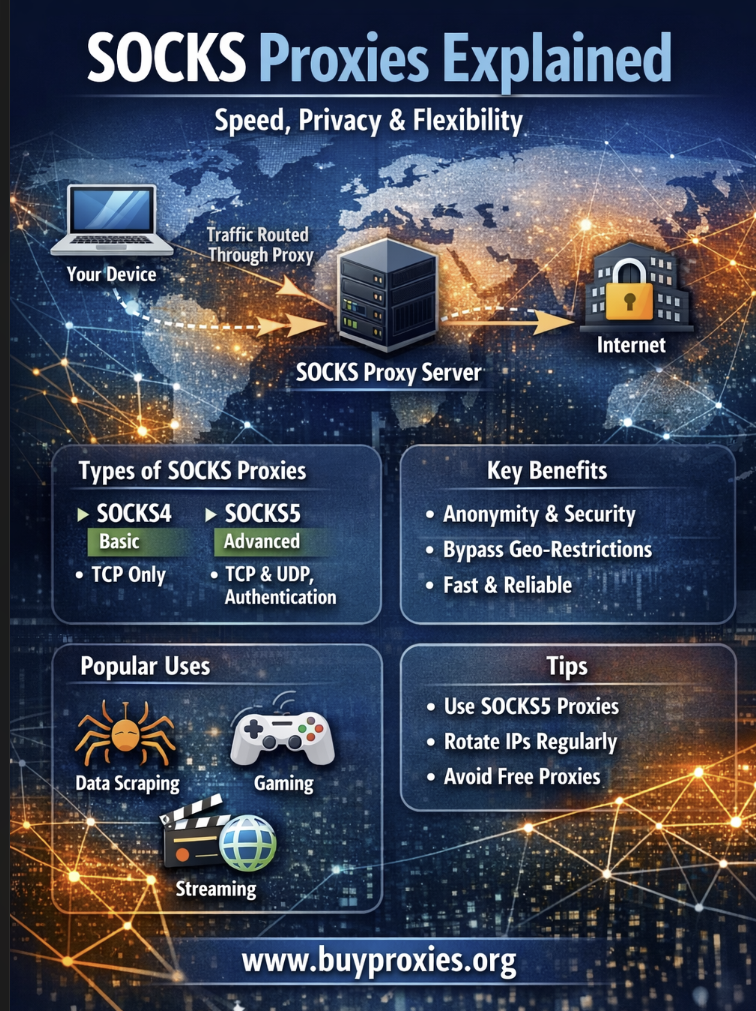
Telegram Proxies: SOCKS5 Setup and Safety Guide
Telegram proxies are usually configured as SOCKS5 routes inside Telegram clients or browser-based workflows. They can help separate a Telegram session from your default network connection, test regional connectivity and keep a consistent route for research or account administration.
A proxy is only one part of the setup. Telegram can still evaluate account history, device behavior, login patterns and platform rules. Use proxies for stable routing and testing, not for abuse, spam or account-risky automation.
Quick answer
Use a private Telegram proxy when you need a stable SOCKS5 endpoint, a specific country route or a cleaner test profile. Test the proxy first, keep the same route for the same account workflow and avoid free public proxy lists for anything sensitive.
When Telegram proxies help
- Connection testing: compare whether Telegram behaves differently through a selected proxy location.
- Account administration: keep one stable route for a managed account rather than changing IPs repeatedly.
- Regional checks: verify country-specific routing before logging in or testing a client.
- Browser profile workflows: keep cookies, device profile and proxy route consistent when Telegram is used through a browser session.
How to set up a SOCKS5 proxy for Telegram by device
Telegram supports SOCKS5 and MTProto proxies. This buying guide concerns SOCKS5-capable proxy packages. Confirm the current menu paths in Telegram’s official proxy documentation, then select SOCKS5 and enter the server, port and any supplied username and password.
| Telegram client | Proxy settings path |
|---|---|
| Android | Settings > Data and Storage > Proxy Settings |
| iPhone and iPad | Settings > Data and Storage > Proxy |
| Telegram Desktop | Settings > Advanced > Connection Type |
| Telegram for macOS | Settings > Data and Storage > Use Proxy |
Telegram SOCKS5 setup checklist
- Choose SOCKS5 mode. Telegram proxy settings usually expect SOCKS5 host, port, username and password. Review the SOCKS5 proxy guide if the app offers multiple proxy modes.
- Copy credentials exactly. Authentication failures usually come from wrong ports, pasted spaces or mixed HTTP/SOCKS settings. The proxy authentication guide covers the common checks.
- Test the endpoint first. Use the Proxy Tester before adding the proxy to Telegram.
- Keep account routing stable. Avoid changing country, protocol and browser/device profile at the same time.
- Record the setup. Save host, port, protocol, country and test time so later connection issues are easier to diagnose.
Dedicated vs semi-dedicated Telegram proxies
| Proxy type | Best fit | Link |
|---|---|---|
| Dedicated proxies | Stable Telegram account administration, repeatable route testing and workflows where one endpoint should stay assigned. | View dedicated Telegram proxy plans |
| Semi-dedicated proxies | Lower-cost testing, light research and browsing workflows that do not require full IP exclusivity. | View semi-dedicated Telegram proxy plans |
| Free proxies | Low-risk experiments only. | Not recommended for real account workflows because ownership, logging, speed and reputation are unknown. |
Telegram proxy vs VPN
| Option | Traffic scope | Important limit |
|---|---|---|
| Telegram proxy | Telegram app connection configured inside Telegram. | Does not change the rest of the device unless another app is configured separately. |
| VPN | Broader device traffic, depending on the VPN settings. | Does not guarantee a particular Telegram account or login outcome. |
| Account/platform controls | Telegram can still evaluate account history, device behavior and login patterns. | Does not replace Telegram account, device or platform controls. |
Choose a private Telegram proxy when you need a stable route specifically for Telegram. Consider a VPN when your goal is broader device-level routing, and test either option before an important session.
Common Telegram proxy problems
| Problem | Likely cause | Fix |
|---|---|---|
| Telegram will not connect | Wrong protocol, host, port or credentials. | Retest the endpoint and confirm SOCKS5 mode is selected. |
| Frequent login prompts | Route, device profile or account behavior changed too often. | Stabilize the proxy location and avoid unnecessary account environment changes. |
| Slow message loading | Endpoint location is far away or the route is congested. | Compare a closer location and test latency before changing account settings. |
| Location mismatch | Wrong endpoint, cached browser data or account personalization. | Check visible IP before using the account and keep browser profiles separate. |
Buying recommendation
For Telegram workflows, start with a small private SOCKS5-capable proxy set and test each endpoint in the exact client you plan to use. Choose dedicated proxies when the same account or workflow needs the same route over time. Use semi-dedicated proxies for lighter testing where full exclusivity is less important.
Telegram proxy FAQ
Do Telegram proxies need SOCKS5?
Telegram clients commonly support SOCKS5. Use the protocol your client expects and test host, port, username and password before important logins.
Should I rotate Telegram proxies?
For account workflows, usually no. Keep one stable proxy route per account or project so the network profile does not change unnecessarily.
Are free Telegram proxies safe?
No. Free proxies are often overloaded, abused or poorly documented, which makes them risky for real Telegram sessions.
Buy dedicated Telegram proxies or compare semi-dedicated Telegram proxies.
Order clarity
What you receive
- What you receive
Proxy connection details for the package processed through the live order form.
- Protocols
HTTP or SOCKS5 options are shown during configuration for supported packages.
- Authentication
Set the requested proxy credentials during configuration before checkout.
- Locations
Current location availability is shown in the selector and can change with inventory.
- Support and checking
Support can help verify connection details and review replacement requests under the service policy.