DICloak proxy configuration
DICloak Proxy Setup: Add, Test and Assign Proxies
DICloak lets users save proxy endpoints and assign them to browser profiles. A reliable setup starts with the correct proxy type, host, port and authentication, followed by DICloak’s connection check and an independent exit-IP test inside the launched profile.
Quick answer: In DICloak, open Proxies, choose Create Proxy, select the supplied proxy type, and enter the host, port, username and password. Run Checking Proxy, save the endpoint, then assign it to a profile through Saved Proxies. DICloak also supports entering a custom proxy while creating or editing a profile. Menu wording can change, so use the current official help page as the interface reference.
What you need for a DICloak proxy
- Proxy type: DICloak’s current documentation lists HTTP, HTTPS and SOCKS5 among the custom options.
- Proxy host: the server hostname or IP address.
- Proxy port: the numeric connection port.
- Proxy account and password: credentials supplied for authenticated endpoints.
- Assignment plan: decide which saved endpoint belongs to which browser profile before bulk editing.
Do not infer the protocol from the port number. Select the type stated by the provider. If your list uses a combined format, convert it with the Proxy Formatter before pasting individual fields.
How to add a proxy to DICloak
- Open the Proxies section. Sign in to the DICloak application and select Proxies from the navigation.
- Choose Create Proxy. Use Custom Proxy for a fixed host, port and credential set.
- Select the exact proxy type. Choose HTTP, HTTPS or SOCKS5 according to the supplied product.
- Enter the connection fields. Add the host, port, proxy account and proxy password. Use Remarks to identify the endpoint without putting secrets in the label.
- Run Checking Proxy. DICloak should test connectivity and report the exit connection when successful.
- Confirm and save. Return to the proxy list and make sure the endpoint appears with the intended type and remark.
- Test again from the profile. After assignment, launch the profile and compare the public IP with the expected endpoint.
The official DICloak help center also documents Quick Input/Parse, saved proxies and API extraction. Use those features only with formats and extraction links you understand. Begin with one manually verified endpoint before importing a large list.
Assign a saved proxy to a browser profile
- Open Profiles and create or edit the intended profile.
- Find the profile’s Proxy Settings.
- Choose Saved Proxies.
- Select the exact endpoint or group required for that profile.
- Confirm the change and reopen the profile if it was already running.
- Visit the IP location checker inside the profile to verify the exit address and location.
For predictable sessions, keep a written mapping of profile name to proxy ID or remark. Avoid randomly changing endpoints during a stateful session unless the workflow specifically requires rotation and the target permits it.
Custom Proxy, Saved Proxies or API extraction?
| DICloak mode | Best use | What to verify |
|---|---|---|
| Custom Proxy | Entering one endpoint directly in a profile | Type, host, port, credentials and check result |
| Saved Proxies | Reusing tested endpoints from the proxy list | Correct proxy/profile assignment and current availability |
| API extraction | Provider-supported dynamic delivery | Extraction URL, session rules, duplicate handling and expiry |
| No Proxy | Intentional use of the device’s direct route | That no profile requiring isolation is launched accidentally |
Prepare a clean proxy inventory
Normalize the proxy list before importing it. Store the protocol, host, port, authorization method, provider reference, expected country and last successful test as separate fields. A remark should identify the endpoint to an operator without exposing the username or password. Avoid vague labels such as “proxy 1” when several people will edit the same workspace; a neutral code and country are easier to audit.
Remove duplicate endpoints and expired credentials before creating groups. If the provider offers both username/password and source-IP authorization, decide which method the workstation will use and document it. Source-IP authorization can fail after an office or home connection changes; credential authorization can fail when fields are copied in the wrong order. Keeping the authorization model with the record prevents unnecessary profile edits.
Plan profile-to-proxy assignments
Choose an assignment rule that matches the legitimate workflow. A long-lived profile normally benefits from one stable endpoint so network changes do not become another troubleshooting variable. A regional QA profile should use an endpoint in the market being tested and record intentional differences in language, timezone or browser geolocation. A short public-page test may reuse a controlled pool when account or session continuity is not involved.
Keep a small assignment table outside screenshots: profile ID, proxy remark, expected country, date assigned, last test and owner. Never store the raw password in that table. When replacing an endpoint, update one profile first, launch it, verify the exit IP and test the permitted destination. Only then apply the same change to other profiles. This staged approach makes rollback straightforward.
Batch operations without losing traceability
Bulk import and one-click assignment save time only after a single endpoint has passed the full path. Validate the input format with a two-record sample, confirm that the parser maps host, port, username and password correctly, and check how duplicates are handled. For API extraction, document whether one URL returns a fixed endpoint, a rotating endpoint or a session-specific route and how long that result remains valid.
After a batch action, sample profiles from the beginning, middle and end of the group. Confirm their saved proxy remarks and launch each sampled profile for an independent IP check. Do not infer success from a completed import message alone. If a batch contains errors, stop and reconcile the failed records rather than importing the same list again and creating duplicates.
Choose a DICloak proxy by workflow
Long-lived profile
Use a fixed, dedicated endpoint when a stable public IP is part of the test design. Record the assignment and avoid unnecessary changes.
Regional QA
Choose the required country, verify it independently, and keep browser language and application location settings consistent.
Team proxy list
Use clear remarks and groups, limit who can view credentials, and check an endpoint before assigning it to another user.
Dynamic endpoint
Document the provider’s session and rotation rules. Do not assume each extraction URL behaves the same way.
Independent verification inside the launched profile
DICloak’s connection check proves that its client can reach the endpoint and complete the configured test. It does not prove that the launched profile uses the expected proxy on every destination. Open the profile, visit an independent IP checker, record the public IP and country, then request the actual permitted target. Keep the connection check, exit-IP check and target response as three separate results.
If the exit IP is correct but the target fails, preserve the status or message and stop repeated retries. Review cookies, account state, DNS, certificate handling and destination policy. If the exit IP is wrong, return to the profile assignment first. That separation avoids replacing a healthy proxy because of an application or account issue.
Credential and team-access hygiene
Grant proxy-list access only to teammates who need it. Do not paste real credentials into tickets, public screenshots or chat messages. When a screenshot is required for support, crop or blur the account and password fields while leaving the non-secret error visible. Rotate exposed credentials through the provider and update one saved endpoint before changing the full workspace.
For offboarding, remove workspace access, review shared proxy groups and rotate any credentials the departing user could view. Keep the application and operating system updated, and obtain DICloak installers and documentation from official channels. A browser profile is not a password vault; continue to use appropriate secret storage for provider credentials.
DICloak proxy troubleshooting
Checking Proxy fails immediately
Recheck the proxy type, host and port. Remove protocol prefixes if the host field expects only a hostname. Confirm that the endpoint is active and that its credentials have not expired.
Authentication fails
Paste the username and password into their separate fields and check for leading or trailing spaces. If the service uses source-IP authorization, authorize the public IP of the device running DICloak.
The profile shows the direct IP
Confirm that the profile uses Custom Proxy or the intended Saved Proxy rather than No Proxy. Close and reopen the profile after saving. Then test the proxy separately with the Proxy Tester.
The location is unexpected
Compare more than one geolocation source and the target’s own behavior. IP databases can disagree. Contact the proxy provider with the exact address when the country assignment is wrong for the workflow.
One endpoint is assigned to several profiles
DICloak can technically reuse saved proxies, but whether that is appropriate depends on the test. For workflows that need separation, assign distinct dedicated endpoints and verify each profile independently.
DICloak proxy maintenance checklist
- Use a unique remark that does not reveal the password.
- Confirm protocol and credential format before import.
- Run DICloak’s connection check and an independent public-IP check.
- Record profile-to-proxy assignments.
- Avoid changing IP during a persistent session without a documented reason.
- Review account permissions before sharing proxy lists with a team.
- Follow the destination’s terms and applicable law.
Review the inventory on a regular schedule and after any provider replacement, credential rotation or application update. Mark the last successful test, retire stale entries and keep one known-good profile for comparison. Maintenance should reduce uncertainty, not create constant IP churn.
DICloak proxy FAQ
Does DICloak include proxy service?
DICloak’s official help describes proxy configuration and states that users can add endpoints obtained from proxy providers. Confirm current product integrations directly with DICloak.
Which proxy types does DICloak support?
Its current custom-proxy documentation lists HTTP, HTTPS and SOCKS5, along with provider-specific dynamic options. Match the selected type to the endpoint you purchased.
Should every profile have a different proxy?
Use distinct endpoints when the workflow requires profile-level network separation. Reusing one proxy is technically possible but creates a shared public-IP signal.
Why does the proxy test pass but the target fails?
The target may apply its own access rules, or the profile may have DNS, certificate, cookie or account-state differences. Test the exact destination and inspect the response rather than treating every failure as a dead proxy.
How should a team replace a failed DICloak proxy?
Change one mapped profile first, run the built-in check, verify the public IP inside the launched profile and test the permitted destination. Update the assignment record before rolling the replacement across a group.
Start with one verified DICloak profile
Add one endpoint, run the built-in check, assign it deliberately, and verify the exit IP inside the launched profile. Scale only after that complete path works. For current field names and interface screenshots, consult DICloak’s official create-a-proxy guide and profile assignment guide.
Updated practical checklist
Create one DICloak proxy entry, run Checking Proxy, and explicitly assign that saved entry to the intended browser profile. Launch the profile and compare its observed exit IP with the expected endpoint before applying a batch assignment. Keep a profile-to-proxy record so a replacement can be traced to the affected profiles. DICloak’s official assignment guide describes selecting Saved Proxies and confirming the profile change.
| Before you start | What to confirm |
|---|---|
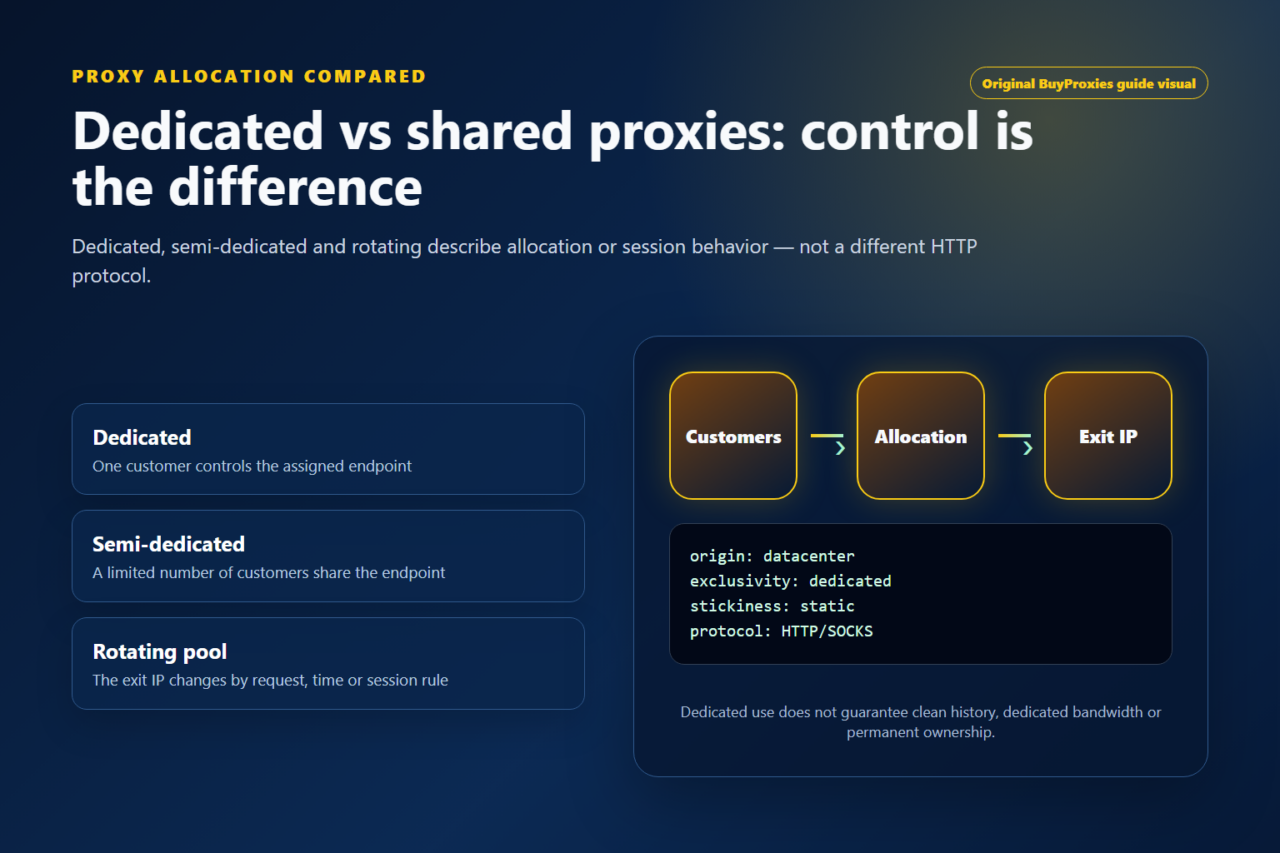
| Proxy type | Dedicated for important workflows; semi-dedicated for lower-risk testing. |
| Protocol | Use HTTP/HTTPS unless the tool clearly supports SOCKS5. |
| Authentication | Check username/password format or IP whitelist before blaming the proxy. |
| Quality control | Run a tester check, then verify location and speed. |
Should I use dedicated proxies for this?
Use dedicated proxies when the task depends on clean reputation, stable sessions or easy troubleshooting.
What should I check first if the proxy fails?
Check format, protocol and authentication first. Then test speed, location and target-specific blocking.
Useful next steps: proxy setup guides, proxy tools, and dedicated proxy plans.