
How to Use a Proxy in n8n: HTTP Requests, Authentication and Troubleshooting
An n8n proxy is useful when a workflow needs a specific outbound IP for API access, allowlisting or consistent network testing. Start with one HTTP Request node and a small IP-check request. Once that works, add your real endpoint and its authentication. Keeping those steps separate makes a failed proxy login much easier to identify.
This guide covers HTTP forward proxies in the HTTP Request node and deployment variables for self-hosted n8n. A reverse proxy serving the n8n editor is a separate configuration. It does not, by itself, change the IP used by outgoing workflow requests.
Prepare your endpoint
Collect the proxy hostname or IP, port, protocol and authentication method. An entry such as host:port:username:password is a provider export format, not a proxy URL. Convert it to the format your client accepts; our proxy formatter helps identify the components.
Use the scheme for the connection to the proxy. An HTTP proxy can carry an HTTPS destination through a CONNECT tunnel, so an HTTPS target does not automatically require https:// in the proxy URL. Confirm the endpoint protocol before changing schemes or ports.
Two separate IP allowlists may apply. If your proxy provider uses source-IP authorization, allowlist the public egress IP of the n8n instance or executing worker so it can connect to the proxy. If the destination API restricts client IPs, allowlist the proxy’s exit IP instead: that is the address the API sees. A laptop test does not establish either permission for a hosted worker. The static proxy API allowlist guide explains how to verify the API-visible exit and prepare a documented failover address. Check the endpoint independently with the proxy tester to separate provider authorization from destination access.
Import and configure a minimal test workflow
Download the n8n IP-check workflow. It contains a Manual Trigger connected to an HTTP Request node, has no credentials and is inactive. Its proxy hostname is deliberately a reserved example, so replace it before execution. Treat it as a configuration template: review the node options in your installed n8n version before running it.
Runtime check — 12 October 2026: We imported and exported this workflow with n8n Server CLI 2.42.6 and Node.js 24.19.0 on Windows. The original workflow remained inactive and contained no credentials. For execution, we changed only the request URL and Proxy option to controlled local test endpoints. The HTTP Request 4.2 node returned the expected JSON for HTTP and HTTPS, including percent-encoded proxy credentials, with certificate validation enabled. Separate controls returned errors for incorrect proxy credentials (407), an untrusted certificate, a destination 403 and the unchanged 30000-millisecond timeout. These checks cover this version and local configuration; they do not verify editor import, n8n Cloud, Docker, global proxy variables or every node. No customer proxies or public destination requests were used, and these results do not measure proxy speed, uptime or destination acceptance.
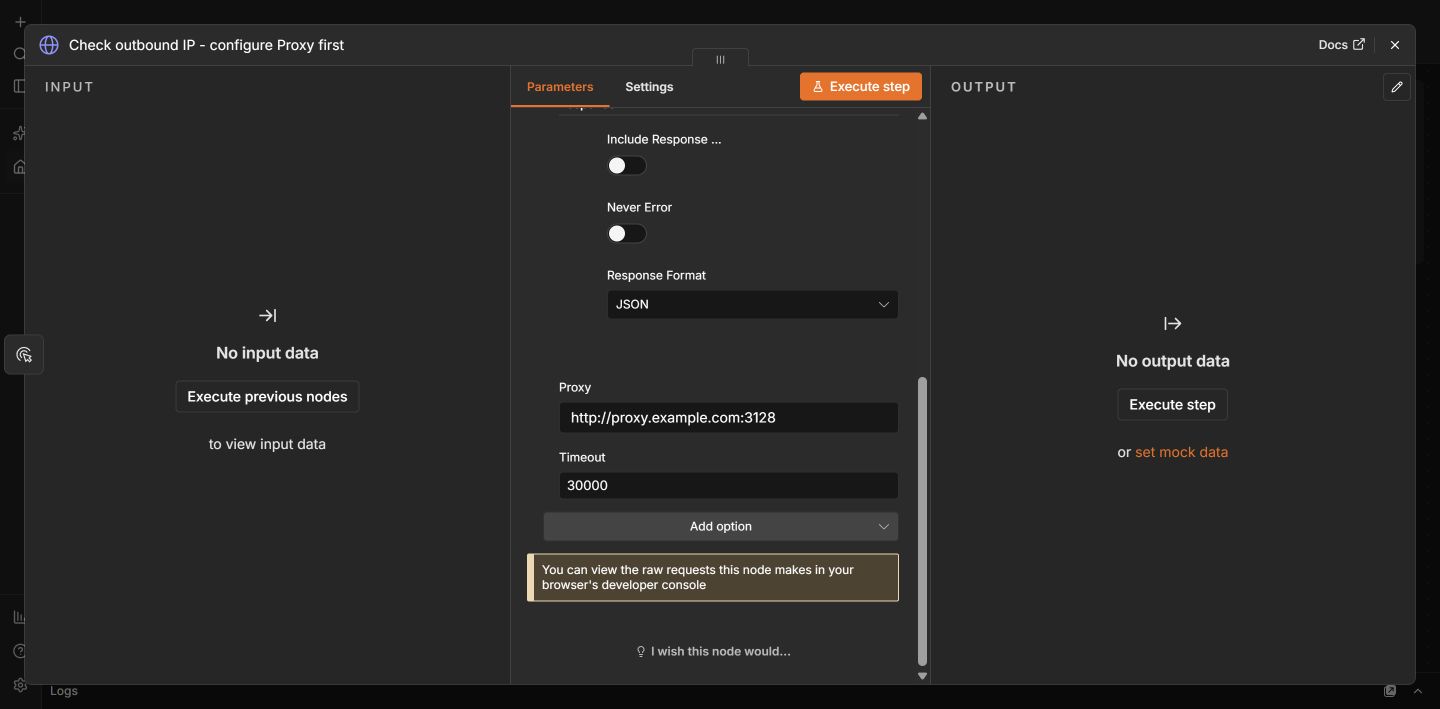
- Create a workflow and use the editor menu’s Import from File option.
- Open Check outbound IP – configure Proxy first. Keep method GET and URL
https://api.ipify.org?format=json. - Under Options, find Proxy, or choose Add Option → Proxy. Replace
http://proxy.example.com:3128with your endpoint. - Keep the 30000-millisecond timeout, save, and execute the workflow manually.
- Read the returned
ipfield and compare it with the expected proxy exit IP.
The official HTTP Request documentation describes this option as an HTTP proxy and gives it precedence over global proxy variables. Keep the initial test to a single request. Avoid adding pagination, retries and API tokens until you can explain the observed IP.
Timeout scope: the HTTP Request node documentation, reviewed 13 October 2026, defines Timeout as the wait for response headers and the start of the response body. The workflow’s 30000 ms value should not be treated as a complete workflow deadline or a limit on every later body read. Keep a separate execution budget for a scheduled job. This is a documentation clarification; the dated local CLI tests above retain their original scope.
Next, replace the IP-check URL with one read-only endpoint from your actual API. Add its API credential separately. Compare the response status, body and elapsed time before introducing a schedule. An IP check demonstrates the route for that request; it does not establish that every destination accepts the proxy.
Keep proxy and API authentication separate
For a username/password HTTP proxy, the conventional URL shape is:
http://USERNAME:PASSWORD@PROXY_HOST:PROXY_PORTReplace each placeholder privately. Percent-encode reserved characters in the username and password components, particularly @, :, /, # and %. Encode each component once; encoding the whole URL would also encode its separators. See proxy authentication and credential formats for the distinction between password login and IP authorization.
The node’s main Authentication selection belongs to the destination API. Entering a proxy password as the API’s Basic Auth credential authenticates the wrong connection. Likewise, do not place a proxy login in an ordinary Authorization header intended for the destination.
A literal authenticated URL in the Proxy field becomes workflow configuration. Treat exports, screenshots and shared workflows accordingly. Remove that value before sharing JSON. The export documentation also warns about credential references and authentication headers in exported workflows.
Do not assume the Proxy field has a separate encrypted proxy-credential picker. For self-hosting, an administrator can inject the proxy URL into the process environment. Access through $env depends on instance policy, including N8N_BLOCK_ENV_ACCESS_IN_NODE. n8n’s external secret stores are an Enterprise feature and resolve in credential fields; they are not a universal secret expression for arbitrary node options.
Understand self-hosted and n8n Cloud limits
For self-hosted n8n, the documented deployment variables include:
HTTP_PROXY=http://proxy.example.com:3128
HTTPS_PROXY=http://proxy.example.com:3128
NO_PROXY=localhost,127.0.0.1
HTTP_PROXY selects unencrypted HTTP destinations; HTTPS_PROXY selects HTTPS destinations. ALL_PROXY is a fallback when the more specific variable is absent. NO_PROXY deliberately bypasses the proxy for matching destinations. Lowercase proxy variables take precedence over uppercase values in n8n’s documented environment handling. Remove contradictory settings and restart or recreate the process that executes the workflow after deployment changes. See the deployment reference.
Apply the configuration to executing workers when using queue mode. Test other nodes separately: community nodes, external executables and third-party SDKs may implement their own network handling. Deployment variables are application settings, not a firewall that forces every outbound connection through one route.
On n8n Cloud, start with the HTTP Request node’s Proxy option. Self-hosted process variables are not settings you can edit through a workflow on Cloud. Confirm any instance-wide requirements with your Cloud administrator. A private endpoint also needs to be reachable from the hosted execution environment.
Troubleshoot the failing layer
| Symptom | First check |
|---|---|
| 407 Proxy Authentication Required | Proxy username, password encoding and permitted authentication method. |
| Connection refused or timeout | Proxy host, port, firewall and reachability from the executing instance. |
| Certificate validation error | Hostname and trust chain. Keep certificate validation enabled. |
| Unexpected outbound IP | Node override, environment conflicts, bypass rules and actual worker. |
| 403 or 429 from the API | Destination permissions, API quota and request rate after proxy login succeeds. |
Record the node name, status and sanitized error message before changing anything. Change one setting at a time. For rate limits, respect the API’s retry guidance and reduce concurrency; repeated retries against a 407 do not repair credentials. Our proxy error guide explains the common status boundaries.
Frequently asked questions
Does this configure every n8n node?
No. The Proxy option belongs to that HTTP Request node. Verify any other node or SDK independently.
Can I paste a SOCKS5 URL into this example?
This workflow uses the documented HTTP proxy option. Do not assume native SOCKS support; use an integration explicitly supporting your protocol.
Will a proxy fix a destination’s 403 response?
It may change the outbound IP, but access still depends on the destination’s permissions and policies. Check the actual response.
Can I keep the same IP across several requests?
Use the same suitable endpoint on each request and verify its exit behavior. Session state, cookies and API credentials still need their own handling.
For a workflow that needs a repeatable HTTP proxy endpoint, compare BuyProxies dedicated proxy plans against your destination and authentication requirements. Continue with our Docker proxy guide if n8n runs in a container, or browse developer proxy examples.
Sources
- n8n HTTP Request node
- n8n deployment environment variables
- n8n workflow export and import
- n8n environment access policy
- n8n external secret stores
Technical references reviewed October 2, 2026. See our editorial policy and testing methodology.
Compare the verified client versions, protocols and test conditions before choosing a configuration. The matrix separates tested cases from untested environments.