Wget Proxy Guide: HTTP, HTTPS and SOCKS5 Limits
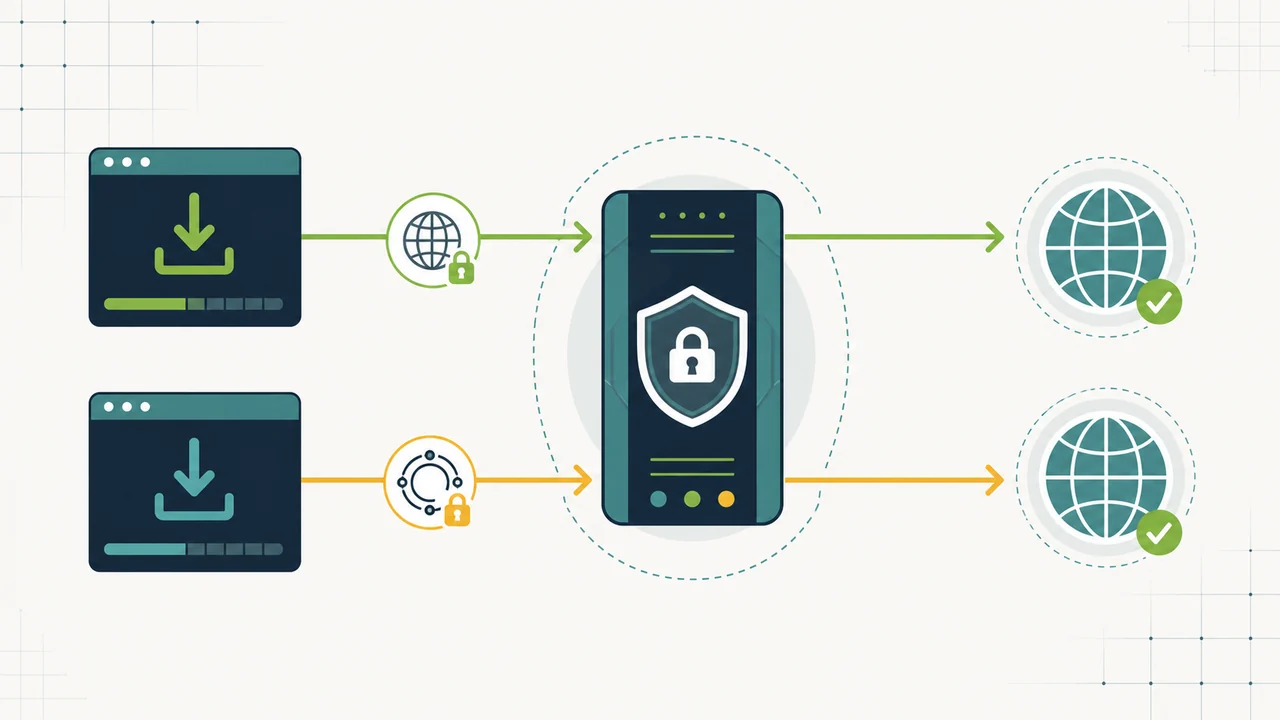
Wget can route downloads through HTTP and HTTPS proxy settings supplied for one command, exported as environment variables, or saved in .wgetrc. Standard GNU Wget does not expose a native SOCKS5 setting, so a SOCKS-only endpoint needs a client with explicit SOCKS support rather than a guessed Wget flag.
This guide shows the supported Wget proxy methods, explains what happens with HTTPS downloads, keeps credentials out of proxy URLs, and provides a supported curl alternative when the required endpoint is SOCKS5.
Quick answer
For a temporary Wget proxy, set http_proxy and https_proxy for that process. For a repeatable user configuration, enable use_proxy in ~/.wgetrc and set the proxy addresses there. Use no_proxy for hosts that must connect directly. If the available proxy is SOCKS5, use a supported client such as curl with --socks5-hostname; do not assume that a socks5:// value turns Wget into a SOCKS client.
Can Wget use a SOCKS5 proxy?
The official GNU Wget proxy documentation lists the http_proxy, https_proxy, ftp_proxy, and no_proxy settings. In that interface, standard GNU Wget does not expose a native SOCKS5 setting. Commands such as wget --socks5 and configurations such as https_proxy=socks5://... are therefore not portable GNU Wget instructions.
| Client or setting | HTTP/HTTPS proxy | SOCKS5 proxy |
|---|---|---|
| GNU Wget proxy settings | Supported with environment variables, command configuration, or .wgetrc |
No native SOCKS5 setting documented by GNU Wget |
curl --proxy |
Supported | Use an explicit SOCKS option instead |
curl --socks5-hostname |
Not needed for an HTTP proxy | Supported, with hostname resolution through the SOCKS proxy |
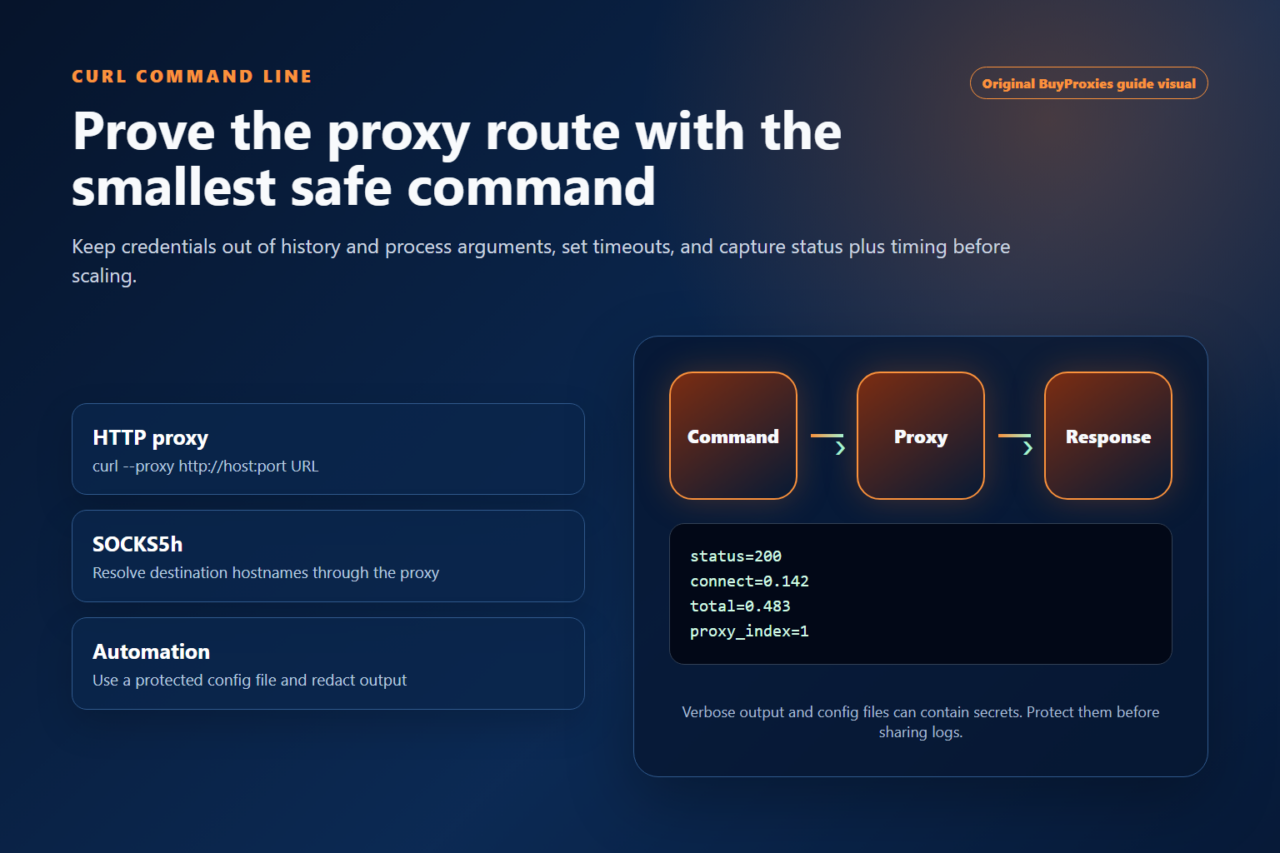
The official curl manual documents --socks5 and --socks5-hostname. The hostname variant asks the SOCKS5 proxy to resolve the destination name, which is normally the safer choice when local DNS resolution should not bypass the proxy route.
curl --socks5-hostname socks-host.example:1080 -o output.html https://example.com/
Use the real endpoint only in your local command or secret store. Do not put real proxy credentials in shell history, shared scripts, or logs. See the curl proxy guide for HTTP, HTTPS, SOCKS5, authentication, and testing examples.
Choose how Wget should receive the proxy setting
| Method | Scope | Best use |
|---|---|---|
| One-command environment | Only the launched process | Testing a proxy without changing the shell or user configuration |
| Exported environment variables | Current shell and child processes | A short terminal session that runs several Wget commands |
wget -e configuration |
One Wget invocation | Scripts that need an explicit, visible Wget-only setting |
~/.wgetrc |
Current user | Stable personal defaults on a controlled workstation |
System wgetrc |
Every user of the installation | Managed systems with a documented administrator policy |
Start with the narrowest scope. A one-command test is easier to inspect and reverse than a system-wide configuration. Move a verified setting to .wgetrc only when repeated downloads genuinely need it.
Use an HTTP or HTTPS proxy for one Wget command
On a POSIX shell, prefix the command with process-specific variables. The proxy address below is an example; replace the host and port with the endpoint you administer or were assigned.
http_proxy=http://proxy.example:8080 \
https_proxy=http://proxy.example:8080 \
wget -O output.html https://example.com/
The https_proxy variable selects the proxy used for an HTTPS destination. With a conventional HTTP forward proxy, Wget reaches the TLS destination through the HTTP CONNECT method; the destination page is still HTTPS. The proxy URL does not need to imitate the destination URL scheme.
Wget also accepts configuration directives for a single invocation:
wget \
  -e use_proxy=yes \
  -e http_proxy=http://proxy.example:8080 \
  -e https_proxy=http://proxy.example:8080 \
  -O output.html \
  https://example.com/
Use one style consistently within a script. Mixing exported variables, command options, and user configuration makes it harder to identify which value won when a request fails.
Export Wget proxy variables for a terminal session
Export variables when several Wget commands in the same shell should share the route:
export http_proxy=http://proxy.example:8080
export https_proxy=http://proxy.example:8080
export no_proxy=localhost,127.0.0.1,.internal.example

wget -O - https://api.ipify.org
Unset them when the session no longer needs the proxy:
unset http_proxy https_proxy no_proxy
Variable names can be case-sensitive depending on the program and environment. GNU Wget documents the lowercase forms, so prefer those rather than relying on another client’s uppercase convention.
Configure a proxy in .wgetrc
The per-user file is normally ~/.wgetrc. Add only the settings the user needs:
use_proxy = on
http_proxy = http://proxy.example:8080
https_proxy = http://proxy.example:8080
no_proxy = localhost, 127.0.0.1, .internal.example
Keep the file owned by the user and avoid storing credentials in a shared home directory, image, repository, or deployment bundle. If a credential must be stored locally, restrict the file permissions, use a dedicated low-privilege account, and follow the proxy authentication guide for the chosen authorization method.
chmod 600 ~/.wgetrc
System-wide configuration belongs in the installation’s global wgetrc, whose location varies by package and operating system. Change it only when every user should inherit the same route and there is a clear rollback path.
Use proxy authentication without embedding credentials in the URL
GNU Wget provides separate proxy username and password options. Use placeholders in documentation and inject real secrets from the local execution environment or secret mechanism appropriate to the system:
wget \
  --proxy-user=PROXY_USER \
  --proxy-password=PROXY_PASSWORD \
  -O output.html \
  https://example.com/
Do not paste a real password into a support ticket or committed shell script. Command-line arguments may also be visible to local process inspection and may remain in shell history. Prefer source-IP authorization where appropriate, a short-lived dedicated credential, or a protected configuration mechanism with the minimum required permissions.
Bypass the proxy for selected hosts
no_proxy is a comma-separated list of names or address patterns that should connect directly. Typical entries include loopback addresses and internal domains:
no_proxy=localhost,127.0.0.1,.internal.example wget https://service.internal.example/
Keep the bypass list narrow. A broad suffix can silently send more traffic outside the proxy than intended. Test both an included host and a proxied public host after every change.
Verify that Wget is using the intended proxy
- Run a small IP-check request through the proxy.
- Compare the returned exit address with the expected proxy endpoint.
- Run a direct request after unsetting the proxy and confirm the address changes.
- Test the actual approved destination at a conservative request rate.
https_proxy=http://proxy.example:8080 wget -qO- https://api.ipify.org
You can cross-check the result with the IP location checker or run an independent reachability and protocol check with the Proxy Tester. An IP-check response proves the route for that request; it does not prove that every destination permits automated downloads.
Troubleshoot common Wget proxy failures
| Symptom | Likely cause | Check first |
|---|---|---|
| Connection refused | Wrong host or port, service down, or firewall block | Confirm the endpoint and test TCP reachability from the same machine. |
| HTTP 407 | Proxy authentication required or rejected | Verify the username, secret source, and authorization method without publishing credentials. |
| HTTP 403 | Proxy or destination policy denied the request | Separate the proxy response from the origin response and inspect the applicable access policy. |
| HTTPS fails while HTTP works | CONNECT policy, certificate interception, or wrong proxy setting | Check https_proxy, the destination port, and whether the network intentionally intercepts TLS. |
| Hostnames fail but IP requests work | DNS resolution problem | Check the system resolver and remember that standard Wget HTTP proxy behavior differs from curl’s SOCKS hostname option. |
| Wget tries to use SOCKS5 as HTTP | Unsupported proxy scheme for standard GNU Wget | Use a client with explicit SOCKS support instead of changing the URL scheme. |
| Proxy seems ignored | use_proxy disabled, bypass matched, or another config won |
Inspect environment variables, no_proxy, command directives, and both user and system wgetrc files. |
wget --debug can reveal configuration and connection decisions, but debug output may include sensitive URLs or headers. Reproduce with a harmless target, remove secrets, and sanitize logs before sharing them.
Wget proxy checklist
- Confirm whether the endpoint is HTTP/HTTPS or SOCKS5 before configuring the client.
- Start with a one-command proxy setting and a small test download.
- Use lowercase
http_proxy,https_proxy, andno_proxyfor GNU Wget. - Keep credentials out of proxy URLs, repositories, screenshots, and support messages.
- Protect any local file that contains proxy settings or secrets.
- Compare the proxied and direct exit addresses.
- Use a supported SOCKS-aware client when SOCKS5 is required.
- Respect the destination’s terms, access controls, and request limits.
Wget SOCKS5 FAQ
Does GNU Wget support SOCKS5 natively?
Standard GNU Wget does not document a native SOCKS5 proxy option. Its official proxy interface covers HTTP, HTTPS, FTP, and bypass settings. Use an HTTP-compatible endpoint for Wget or select a client with explicit SOCKS5 support.
Can I set https_proxy to a socks5 URL?
That is not a portable GNU Wget configuration. Changing the URL scheme does not add a SOCKS implementation to the client. Use the proxy type documented for Wget or a SOCKS-aware tool.
What is a supported alternative for a SOCKS5 proxy?
curl supports SOCKS5 explicitly. Use --socks5-hostname when the proxy should resolve the destination hostname, then verify the exit address before downloading the required resource.